
Setting Up a New Smartphone Without Losing Your Old Data
Step-by-step guidance on switching to a new phone while keeping your contacts, photos, and apps intact — for both Android and iPhone users.
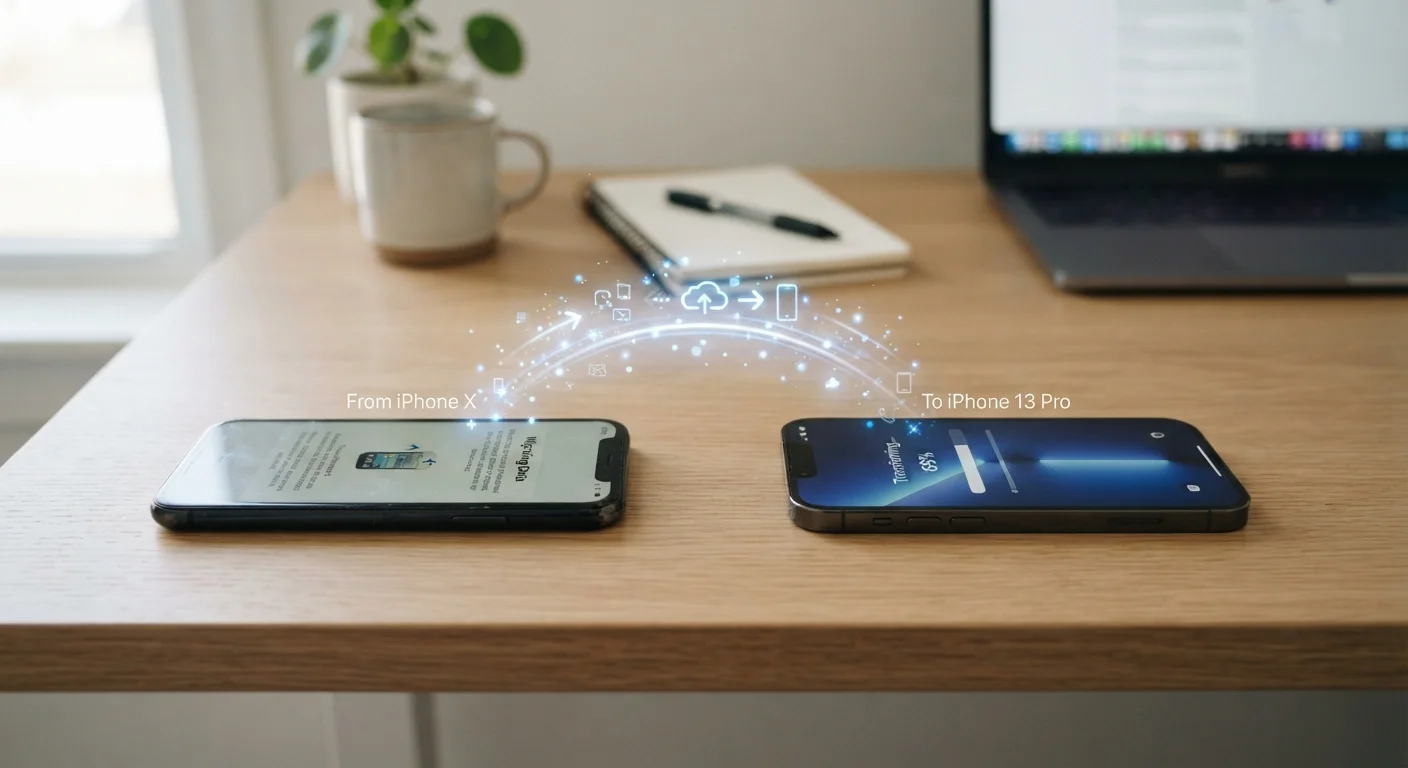
Photo: ReadersChronicle.com | Your Comprehensive Learning Destination editorial
Key Takeaways
- Back up your old phone before doing anything else - this single step prevents most data loss.
- Android and iPhone each have built-in transfer tools that handle contacts, photos, and apps automatically.
- Signing into your Google or Apple ID account on your new device restores most data without a cable.
- Authenticator apps and bank apps often require manual re-enrollment and cannot be transferred automatically.
- Verify your data is complete on the new phone before wiping or selling the old one.
Before You Start: Why Preparation Matters
Getting a new smartphone is exciting, but skipping the prep work is the most common reason people lose contacts, photos, or app data during a switch. The good news is that both Android and iPhone have mature built-in tools designed to move your digital life from one device to another with minimal effort - as long as your old device is ready.
The steps below apply whether you're staying within the same ecosystem (Android to Android, iPhone to iPhone) or crossing over. Cross-platform transfers involve a few extra steps, but the process is still manageable for everyday users.
What you will need
Once your new device is set up with your data, take the time to secure it before logging into sensitive accounts. A fresh phone is only as safe as the protections you put on it.
Step-by-Step: Transferring Your Data
Follow these steps in order. Rushing past the backup step is the one mistake worth avoiding above all others.
Back Up Your Old Phone
Android: Go to Settings → Google → Backup and tap Back up now. This saves contacts, app data, call history, and settings to your Google account.
iPhone: Go to Settings → [Your Name] → iCloud → iCloud Backup and tap Back Up Now. Alternatively, connect to a computer and back up using Finder (Mac) or iTunes (Windows).
Wait for the backup to complete fully before moving on. This may take several minutes depending on how much data you have.
Use the Built-In Transfer Tool on Your New Phone
Android: During initial setup, choose Copy apps and data from your old phone. You can transfer wirelessly or via a cable using the Google One or manufacturer transfer app (such as Samsung Smart Switch). Follow the on-screen prompts on both phones.
iPhone: Place your old iPhone next to the new one during setup. The Quick Start screen will appear automatically. Tap Continue, scan the animation on your new phone, then choose Transfer from iPhone. The phones communicate directly over Wi-Fi and Bluetooth.
Sign In With Your Account on the New Device
Once the transfer finishes, sign in with your Google account (Android) or Apple ID (iPhone). This step is what restores purchased apps, contacts synced to the cloud, and calendar data. Your photos should begin syncing from Google Photos or iCloud automatically if those services were active on your old phone.
Manually Re-Enroll Apps That Cannot Transfer
Some apps require manual setup on every new device for security reasons:
- Authenticator apps (e.g., Google Authenticator, Microsoft Authenticator): Re-enroll each account individually using each service's 2FA settings page.
- Banking and financial apps: Most banks require you to verify your identity again on a new device. Have your account credentials and any verification method ready.
- Work or enterprise apps: Contact your IT department if company-managed apps don't appear or require additional configuration.
Verify All Your Data Before Wiping the Old Phone
Spend 10-15 minutes spot-checking the new device before treating the transfer as complete:
- Open your contacts app and scroll through to confirm entries are present.
- Open your photo gallery and check that recent photos appear.
- Launch two or three frequently used apps and confirm your data or login is intact.
- Check your messages - SMS threads may not transfer cross-platform.
Only after you're satisfied should you factory reset the old phone. Go to Settings → General → Transfer or Reset iPhone → Erase All Content (iPhone) or Settings → General Management → Reset → Factory Data Reset (Android).
SMS Messages Don't Always Transfer Cross-Platform
If you're switching from Android to iPhone or vice versa, your SMS text message history will not transfer automatically using the built-in tools. Third-party apps exist to assist with this, but results vary. Plan to start fresh with your message history if crossing ecosystems, and save any critical conversations as screenshots beforehand.
After confirming everything transferred correctly, you can safely factory reset or prepare your old phone for resale or recycling. If you're setting up other connected devices afterward, our guide to smart home devices covers how new gadgets fit into your existing setup.

Tech Editorial Team
Tech Editorial Team is the collective byline for our editorial team and contributor network. Articles published under this byline or an editorial pen name are researched, written, and reviewed according to our editorial standards for clarity, consistency, and independence before publication.
View author profile